Reference Designation System (RDS)
Systemtypes are organized into Technologies (e.g., Solar, Wind, Storage, or any other domain).To edit the taxonomy for a given Technology, you must have...
Systemtypes are organized into Technologies (e.g., Solar, Wind, Storage, or any other domain). To edit the taxonomy for a given Technology, you must have Administrator permissions in the Veracity Asset Model for that specific Technology.
Each system type includes list of properties and signals:
- Properties: Descriptive attributes that characterize the asset, e.g., Manufacturer, RatedPower, Location.
- Signals (if applicable): Definitions of sensor-related attributes, e.g., Voltage, Temperature, EnergyOutput.
Create System type
- Select RDS from left side meny
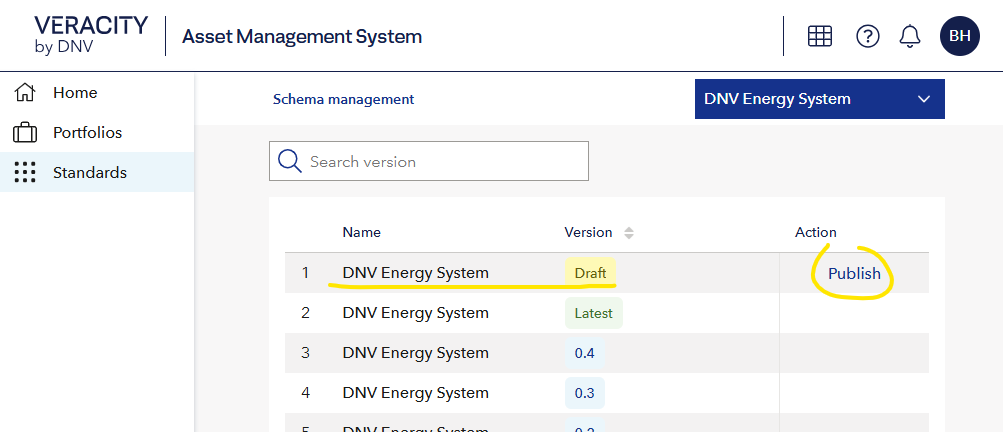
- Select draft version
- Select button Add System type
- Choose the relevant Technology from the dropdown menu.
- Provide a name for the new System Type.
- Select Submit.
- To add properties and signals, continue to the next section.
Add property to system type
- From the list of Syste, Types, select the one you want to edit
- Choose Properties (from tab menu Properties/Signals)
- Select +Add property
- Select Submit
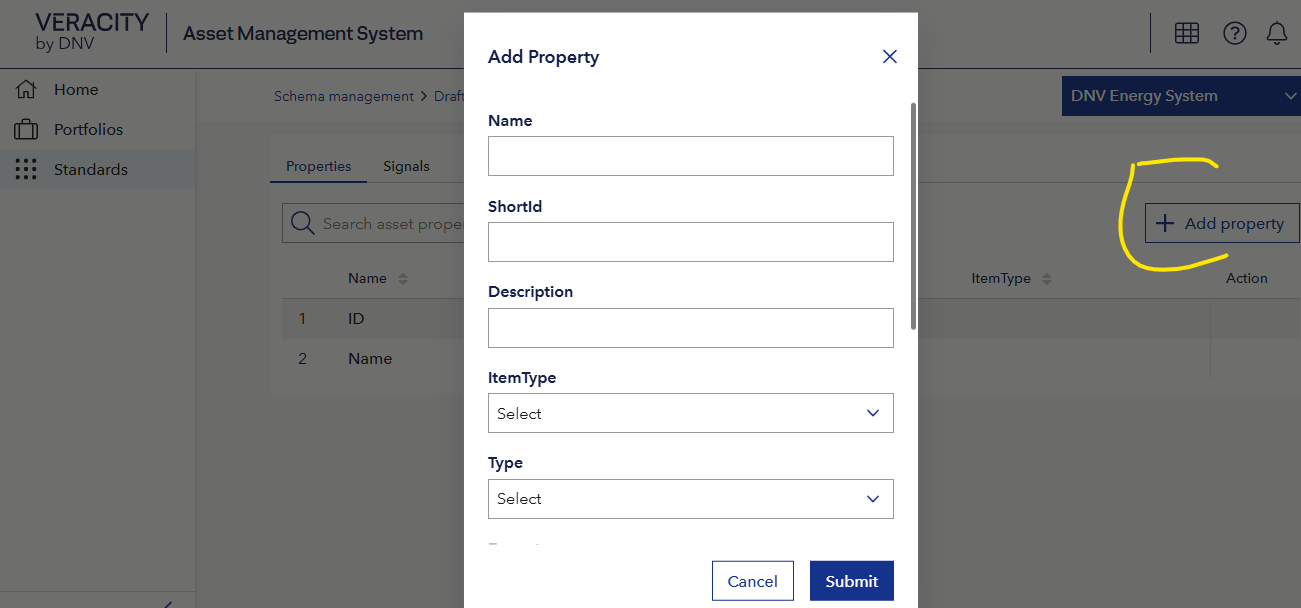
| Metadata of properties | Description |
|---|---|
| Name | Name of property |
| ShortId | Unique name for propert that cannot change |
| Description | Description of property |
| ItemType | Select a predefined data type. Type and format will soon be auto-filled when defined in the datatype. |
| Type | Number, Integer, String, Boolean. Note: Date is String |
| Format | See data types below |
| MinValue | Optional minimum value for numeric types |
| MaxValue | Optional maximum value for numeric types |
| DefaultValue | Optional default numeric value used when none is provided |
| Default unit | Unit associated with the default value |
Add signal to system type
- From the list of systems select the system type you want to edit and select the name
- Select Signals (tab menu: Properties/Signals)
- Select +Add Signal
| Metadata of properties | Description |
|---|---|
| Name | Name of property |
| ShortId | Unique name for propert that cannot change |
| Description | A desc of property |
| ItemType | Select a predefined data type. Type and format will soon be prefilled when defined in datatype |
| Type | Number, Integer, String, Boolean. Note: Date is String |
Edit Systems
- Select RDS from left side meny
- Select draft version
- Use filter - technology
- Select system type you want to edit
- Select propert or signal and edit from Action column
- Add property or signal
- Delete propert or signal by hovering the line and select delete from Action column
Datatypes
A datatype is a reusable definition applied to properties or signals—such as TemperatureType, PowerType, or WeightType. Each property or signal references a datatype, which governs:
- Value type
- Value format
- Allowed units
- Value constraints
| Value type | Format |
|---|---|
| String | string, date, uuid |
| Number | float |
| Integer | int32, int64 |
| Boolean | boolean |
Note: Complex datatypes are not supported in this version, but support is planned for a future release.
Example of datatype named WeightType
| Prop name | value |
|---|---|
| TypeName | WeightType |
| Allowed units | kg, lb, T |
| ValueType | Number |
| Value format | float |
| Allowed values | (none specified) |
| description | Weight of object |
Publish technology
Changes made in the draft version do not apply to existing instances until the Technology is published. Only publish the Technology you are responsible for.
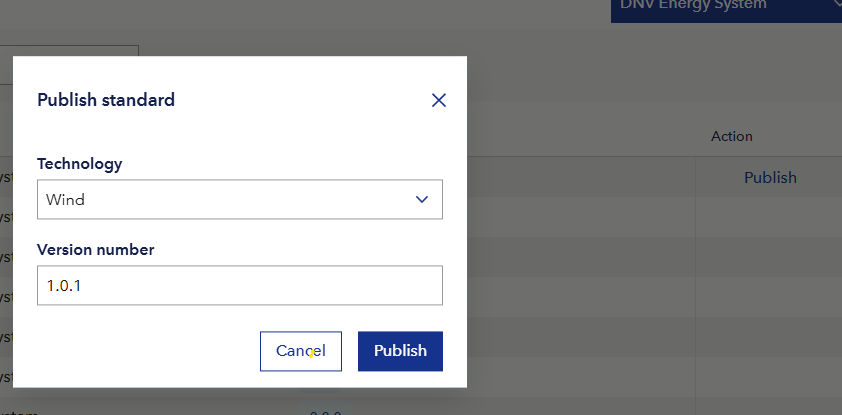
All technologies are publishe into new version (and Latest), but only the selected technology is updated from Draft. The other technologies, are re-publihsed from Latest.
Latest
Latest show all latest technologies published.
Create Blueprints
Blueprints define reusable hierarchical templates composed of system types. They enable consistent construction of asset structures, such as predefined turbine configurations. When an asset instance is created using one or more blueprints, the complete hierarchy is instantiated according to these templates.
- Select RDS from left side meny
- Select draft version
- Select Blueprints
- Select Add blueprint
- Provide a name
- Select Create Blueprint
- Select the created Blueprint from the list to open it
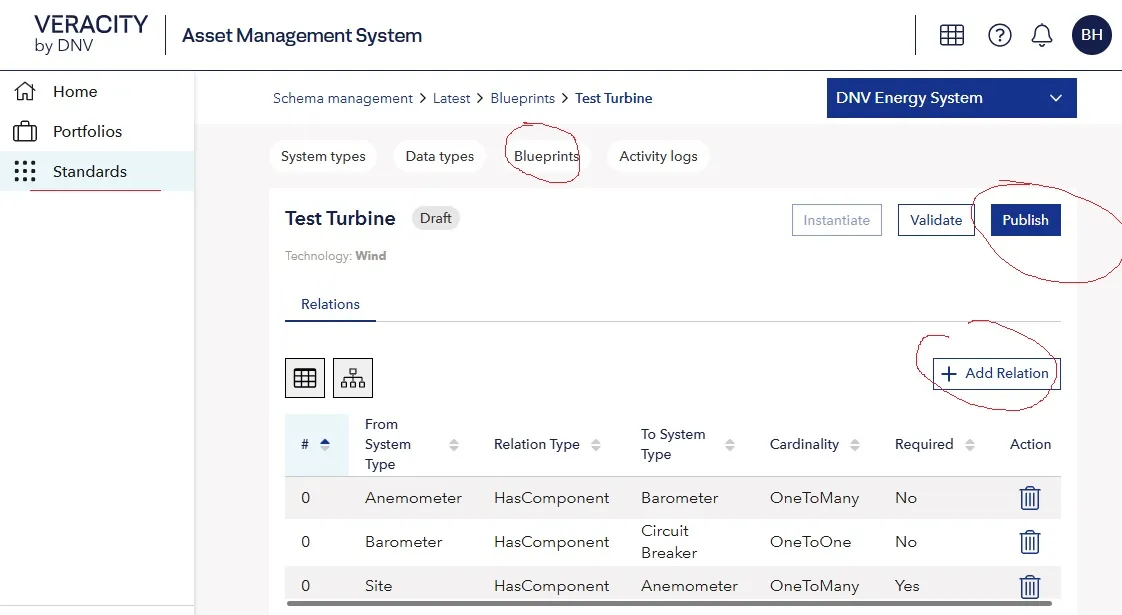
- Add the hierarchy using Add Relations
- Publish the Blueprint to enable instantiation
Edit Blueprint
- Select RDS from left side meny
- Select draft version
- Select Blueprint
- Open the desired Blueprint by selecting its name.
- If published, select Unpublish.
- Add Systems to the Blueprint using Add Relations.
- Publish once the Blueprint is updated.
Edit blueprint hierarchy
To add Systems to a Blueprint, you define a relation between two System Types. System Types must be defined in the Taxonomy before they can be used in a Blueprint.When editing a Blueprint, select +Add Relation and configure:
Select: * From System Type * To System Type * Realtion Type: Select HasComponent * Cardinality: OneToMany, OneToOne, ZeroToMany,ZeroToOne * Order Index: UI index for sorting children on same level
System Types do not need to belong to the same Technology.