Single Sign-On (SSO)
You can sign in to Veracity with your company account using the Single Sign-On (SSO) solution. The benefits are:
You can sign in to Veracity with your company account using the Single Sign-On (SSO) solution. The benefits are:
- Convenient sign-in - use your company account credentials.
- Easy access management - if an employee leaves the company, terminate their company account to revoke their access to Veracity resources.
The SSO setup is free of charge and available for all resources integrated with Veracity.
Please note that the SSO setup is between your company and the Veracity platform and will apply to all users that have an email address matching the email domains that are configured for SSO.
Also, as the setup is between your company and the Veracity platform, it will apply to all services published through the Veracity platform.
If you want to see the sign-in flow for the user once SSO is configured, go to "SSO user experience" below.
Provisioning users
You do not need to provision users. When a user enabled for SSO signs in to Veracity, they automatically get a Veracity account. However, Veracity plans to enable provisioning users in advance so that customers can upload their users and manage their permissions. This would be implemented through an API endpoint supporting the SCIM protocol. For details, contact support@veracity.com.
How to set up SSO?
Veracity's SSO supports the following protocols:
- Open ID Connect 1.0
- SAML 2.0
The setup depends on who is your company's identity provider:
- If your company's identity provider is Microsoft Entra ID (formerly named Azure Active Directory/Azure AD), go to "SSO with Entra ID" below.
- If you have another identity provider, go to "Identity Providers other than Entra ID" below.
The setup applies to all users with email addresses matching the email domain that has been configured for SSO.
SSO with Entra ID
Veracity implements SSO by using the Open ID Connect 1.0 protocol. Everything is pre-configured by installing the Veracity Single Sign-On app from the Microsoft Entra ID Gallery. This application controls the trust relationship between Veracity and your Entra ID. Note that:
- To implement SSO, you need to be a Cloud Application Administrator or Global Administrator in your company's Entra ID.
- You will need to allow the app to sign in users and read the profile data for the signed-in users.
- User's profile data is handled according to the Veracity Terms of use and Privacy statement.
If you want to stop using SSO for Veracity, delete the Veracity Single Sign-On app in your Entra ID.
Implementation
To implement SSO with Entra ID, follow the steps below.
- Sign in to the Azure Portal with an account that is a Cloud Application Administrator or Global Administrator in your company's Entra ID.
- Go to Microsoft Entra ID > Enterprise applications and select New application.
- Find the Veracity Single Sign-On app and select Sign up for Veracity Single Sign-On.
- Ensure that the app requests permissions for all users in your organization, and select Accept. The app will be installed in your Entra ID in the Enterprise applications blade. The name of the app is Veracity Single Sign-On.
- You will be redirected to another page and asked to:
- Provide the email domain(s) for which you want to set up SSO. Note that these domains must match the mail attribute of your users' accounts in Entra ID.
- Prove that you own the domain by registering a TXT record in your DNS.
- Enter your company name, technical contact and support contact email addresses.
- Once the DNS records are verified, Veracity will analyze your existing user base in Veracity. If there are issues, the process will stop, and we will contact you by email for manual cleanup.
- If there are no issues, you will be able to proceed with the SSO setup. After selecting the Submit button, the whole process usually takes five to ten minutes.
Identity Providers other than Entra ID
If you use an identity provider other than Entra ID, send a request for implementing SSO to support@veracity.com. Provide the following information:
- The name of the email domain for which you need SSO. For example, @dnv.com.
- The name of your identity provider. For example, Ping Identity or ADFS.
- The protocol you want to use. Choose OpenID Connect 1.0 or SAML 2.0.
- The Metadata URL for your identity provider.
- Claims sent to Veracity in the user's token:
- The name of the claim containing user's first name
- The name of the claim containing user's last name
- The name of the claim containing user's email address
- The name of the claim containing a unique identifier for the user
- Optionally, the name of the claim indicating that multi-factor authentication was done within the customer company
Verification
When you have implemented SSO, verify if it works properly by following the steps below. Avoid using the administrator account, and choose a regular user account instead.
- Restart your browser.
- Go to the Veracity home page.
- In the upper right corner, select the Sign in button.
- Enter an email address for a regular user account and select Continue.
- You should be redirected to your identity provider. Authenticate there.
- If this is the first time you sign in to Veracity, you will be asked to specify your country and accept the terms of use.
- You should be redirected to the Veracity home page.
- To verify you are signed in, in the upper-right corner of the page, find your initials or profile picture.
For customers with Entra ID: If you notice that your users are repeatedly prompted to select which account they should log in with when they navigate between services in Veracity, this can happen if your email addresses are different from the UserPrincipalNames you log on with in your Entra ID tenant. We have a workaround for this. Please contact support@veracity.com.
SSO user experience
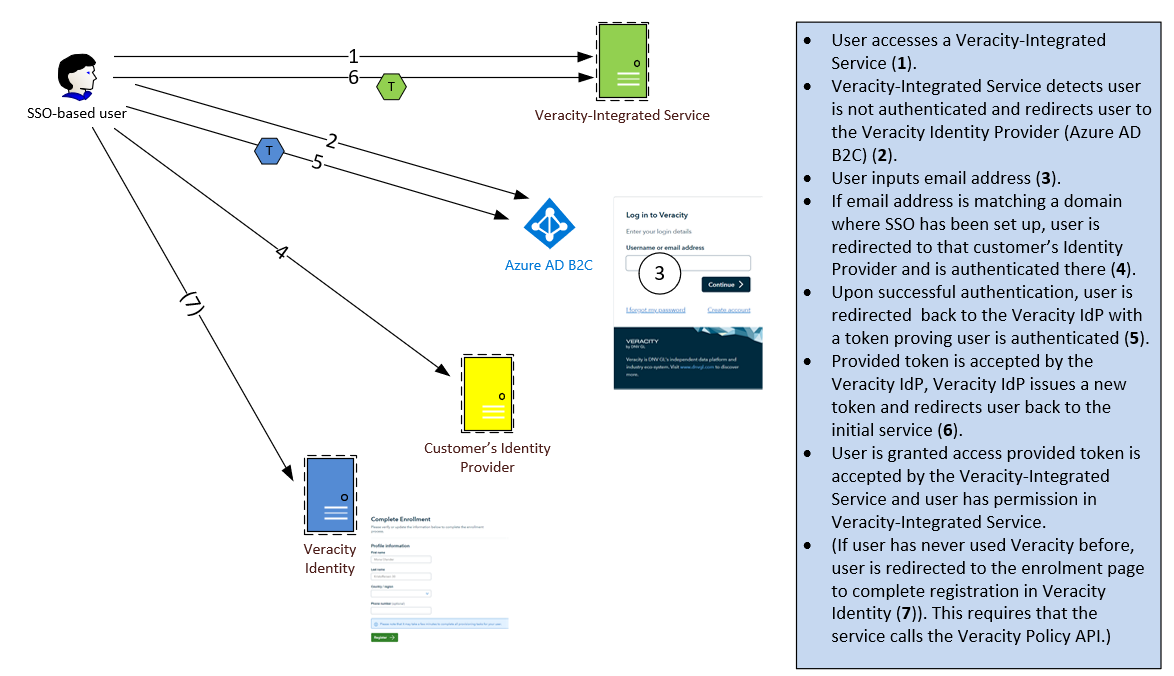
To see the SSO sign-in flow for a user, consult the diagram below.
Support
If you need support, contact support@veracity.com.